Showing posts with label AppleScript. Show all posts

Thursday, August 11, 2011

How To Make Grooveshark A Stand-Alone Application with Hot Keys, Part 2 of 2 for Mac Users

Click here for the first part of this tutorial.


Grooveshark logo


1. Download Spark, a free global hot key application for OS X. You pick up a copy here.


Spark logo


2. Once you have installed Spark, launch it. When the Spark window starts up, create a new Applescript hot key by either going to the gear menu in the top left-hand corner and selecting Applescript or by going to File>New HotKey>Applescript


Spark: Gear Menu>New Hotkey>Applescript


Spark: File>New Hotkey>Applescript /></span></a></div>
<span class=


3. Enter this information in the setup window that slides down:
1. Shortcut: ⌃⌘⌥ F8 (you can change this to anything)
2. Name: Play/Pause Grooveshark (again, you can change this name to anything)
3. Down in the text area, enter this:
     do shell script "curl http://localhost:8800/play"
(Note: If you changed the default port number in keySharky, the port number in the hot key preferences needs to be changed too.)


4. Repeat for all other hot key commands that you want. See below for all the keySharky commands.


5. Also, make sure that the Spark daemon has been started, otherwise your hot keys will not work. The "Start Spark Daemon" button is at the very bottom in the center of the Spark window.


Start Spark daemon


This is a list of all the keySharky commands. To change the hot key command, change the URL in the hot key preferences.


Play/Pause current song:
http://localhost:PORT/play


Stop playing current song:
http://localhost:PORT/stop


Select previous song in playlist:
http://localhost:PORT/previous


Select next song in playlist:
http://localhost:PORT/next


Favorite current song:
http://localhost:PORT/favorite


Vote up current song:
http://localhost:PORT/voteup


Vote down current song:
http://localhost:PORT/votedown


Clear vote of current song:
http://localhost:PORT/voteclear


Toggle mute (>= version 1.5.2):
http://localhost:PORT/mute


Decrease volume (>= version 1.5.2):
http://localhost:PORT/voldown


Increase volume (>= version 1.5.2):
http://localhost:PORT/volup


Replace "PORT" with whatever port number you chose in the keySharky preferences.


The API server has access to every keyboard shortcut toggle in keySharky, so you can play, stop, select next song etc. easily with one of the above methods.


You are done setting up your Grooveshark application!! Thank you for using this tutorial and please follow my blog if you liked it.


-- Matthew

Monday, July 25, 2011

A Simple AppleScripting Tutorial


Among other things, I enjoy AppleScripting. AppleScript is a coding language built into Apple operating systems since OS 7 in 1993. It is used to control and exchange data with applications. Although AppleScript has limited processing power, its main job is to interact with already-built applications to increase efficiency by performing repetitive
tasks. And no, you PC users can't use it.
So, what can you do with AppleScripts? Well, open up AppleScript Editor (Script Editor on OS X systems before Snow Leopard 10.6). It's in Applications>AppleScript>. Here's a very simple example of AppleScripting.
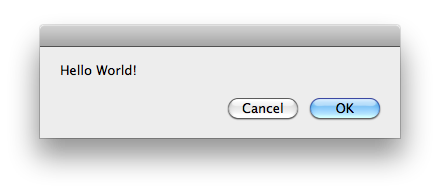
display dialog "Hello World!"


This will display a window like this:
To customize the window, you can add buttons:
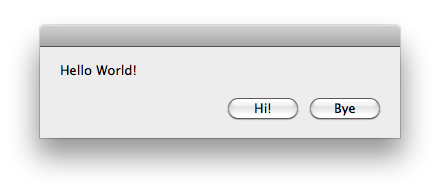
display dialog "Hello World!" buttons {"Hi!", "Bye"}
This will display this:

Notice that neither of the buttons are highlighted blue. You can fix that by adding this:
display dialog "Hello World!" buttons {"Hi!", "Bye"} default button 2
Now it looks like this:
You can change the default button by changing the default button number. The number go from left to right, with the leftmost button being 1, etc.
Another cool thing you can add to a dialog box is an icon.
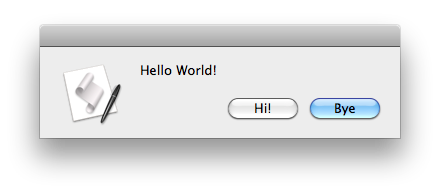
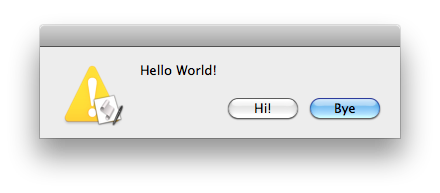
display dialog "Hello World!" buttons {"Hi!", "Bye"} default button 2 with icon 1
display dialog "Hello World!" buttons {"Hi!", "Bye"} default button 2 with icon 2
Icon 1:

Icon 2:
I also found another way to add icons to a dialog here. Very cool!
If you want to find out more about AppleScripting, check out the Apple Developer documentation here and here. Macscripter is also another good place to get information. I will probably be posting more stuff on AppleScripting, including some more complex coding.

-- Matthew